Showing posts with label iPad. Show all posts

July 24, 2013

Choosing a Case for your AAC Device (with a Giveaway!)

This is part 3 of my series about choosing an AAC device. Click to read Part 1 (Apps vs Devices) and Part 2 (App Review).

If you choose a stand-alone device, chances are it comes with a built-in case. But if you choose a tablet with an AAC app as we did, you'll need to choose a case. In this post, I'll review three iPad cases. There are, of course, many many cases to choose from, and if you have a favorite, please do leave it in the comments.

When I looked into cases for our dedicated AAC iPad, I had several criteria for an ideal case.

First, it has to be durable. Of course, all cases have to protect, but because your AAC device will be coming with you everywhere, it is even more likely to be dropped, bumped, and generally treated more like sports equipment than a piece of expensive electronics.

Second, it has to be easy for the user to carry. Since many kids will be taking their devices to school, or even just around the house, it should have a carry handle and preferably a strap that will allow hands-free transportation.

Third, it should have a stand allowing the device to be upright on a table.

And finally, it should ideally amplify the sound loud enough to hear in a noisy environment like a restaurant.

Otterbox


Otterbox Defender
I have had an Otterbox Defender series case on "my" iPad since it became "our" (read: the kids') iPad.
Our iPad has survived many falls, throws, and even bites with this case. Food has been mashed on the screen, so I love that it has a built-in screen protector. Putting the case on the iPad does not require any screws, but connects well, and Moe has not ever gotten it off. The case separates into two parts, allowing the iPad to stand up in both landscape and portrait orientations, and Moe has no trouble (for better or worse) separating the two parts. Eventually (after well over a year), he did break the stand and the clips that hold the two parts together cracked. The Otterbox comes in many colors, and allows for easy distinction between devices if you have a non-AAC iPad in addition to the dedicated speech device. The case does not, however have a carry handle and is fairly bulky. It is moderately priced.

Pros:
Durable
Stand in both portrait and landscape orientations
Built-in screen protector
Many colors
Replacement warranty

Cons:
Clips and stand can break
No carry strap or handle

Cost: About $65 on Amazon.

iAdapter

iAdapter
This is the case that was recommended by our SLP and I see many kids carrying this case. It has a built-in handle and there are several accessories available, including a carry strap, wheelchair attachment, and bluetooth keyboard. It comes in two parts that separate and screw together. This ensures your child won't get the case off, but is also a pain if you have to open it. It has built-in speakers, making the case a little bulky, but also helps amplify the sound in noisier environments. The case comes in black or grey, but some customization via stickers or "skins" is available, which is nice for people who bring their device to school or a place where others may be using a device with the same case. (Our stickers are already starting to peel off.) There is also a nice slider that covers the home button, though Moe had no trouble figuring out how to open it.

There are a few issues with this case. The first is that the speakers need to be charged, so you have to plug two things in every night. The kickstand does not attach at the bottom to the case, so when you walk with it, it bounces against the case and is very annoying. You can put the case into the carry bag, but I got tired of taking the device in and out of the bag, which is a separate piece and likely to get lost. There is no built-in screen protector, so you need to use the kind that sticks on the screen. I don't think these protect as well, and they are hard to put on straight and without air bubbles. Finally, this case is very expensive. The case runs between $265-$345, depending on the accessories you choose.

Pros:
Durable
Kickstand for standing upright on a table
Good amplification
Some customization
Lots of available accessories

Cons:
Expensive
Requires charging
No build-in screen protector
Sticker skins peel off easily

Cost: $265 standard, $345 bundle

GoNow case

GoNow for iPad and iPad Mini

The GoNow case is made by Attainment Company, which also makes the GoTalk NOW AAC app, and the GoTalk Express device. This case is light weight and seems to offer good protection, though does not include a screen protector. It comes in a silver color, has a built-in handle, and locations to attach a carry strap, though a strap is not included with the case. The case comes in two parts that must be screwed on, but the screws are attached to the case, so they don't get lost when taking the case apart. The case has a speaker which is designed to amplify the iPad sound acoustically, without electronics, so it doesn't need to be charged. There is also a switch on the front that magnetically locks and unlocks the device (though this doesn't work if you use your app in Guided Access mode, as I do). It does not have a kickstand, though I've been told one may be included in a future version. At $59, it is a relatively inexpensive option as well.

Pros:
Lightweight
Relatively inexpensive
Acoustic amplification that doesn't require charging

Cons:
No screen protector
No table stand

Cost: $59

We have stuck with the GoNow case, and with the addition of a stick-on screen protector and carry strap have found this to be a good option. I recently ordered a keyguard for the LAMP Words for Life App, which I think will be another nice addition. I highly recommend this case.

There are some other cool cases, including the Big Grips (reviewed by Adventures in Extreme Parenting) and the KidBox (which at under $20 could be an interesting option).

AND NOW...THE GIVEAWAY!

Attainment Company has offered to give away a GoNow case to one lucky winner! Just leave a comment below with your favorite iPad case. Contest will stay open through Monday and I will announce the winner on Tuesday!

(Update: The GoNow case is compatible with iPad 2 and later, as well as the iPad mini.)

April 26, 2013

Choosing an AAC Device: Part 2

This post is way overdue. We have finally completed our AAC evaluation, selected a device and app, and have had two working sessions with an AAC specialist. Things are going well, though that will be the next post. Today, I want to tell you about the apps and devices we looked at during the evaluation process, and some quick notes on each.

Like I did in Part I of this series, I'll divide these up into stand alone devices and apps. This is by no means a comprehensive list of AAC apps and devices or their features. Many devices and apps have cool features including visual scenes (photos of rooms or places that can then have "hot spots" attached), but we didn't evaluate those features. I hope this will help others get started on their AAC journey. 


Devices:


1. Accent 700 (Prentke Romich Company-PRC):  This was my overall favorite of the stand-alone devices. I liked the size and the custom hardware was sturdy, and included a built-in handle. For those of you familiar with devices like the Springboard Lite and Vantage Lite which were recently discontinued, this is the device that replaced them. 

This is one of several devices based on the Unity language. "Unity focuses on frequently used words. Research has shown that approximately 400 frequently used words make up more than 75% of our speech, regardless of age, gender, or background." I liked the research that went into building this software. I also liked that the device uses motor patterns that can be learned in addition to icon recognition. We thought Moe would benefit from that.


There were a few downsides. First, it seems less intuitive to pick up - not for the learner (Moe), but for me and others that will be teaching Moe. It isn't based on the folder-like model I've seen with other devices and even icon based PECS.


At almost $5,000, it is also very expensive. But as I discussed last time, the devices are often covered by insurance and come with a high level of customer support from the company.


2. NOVA chat 5, 7, and 10 (Saltillo Corporation): This series of devices is based on customized Android hardware, with a variety of screen sizes (five, seven and ten inch screens). I was not able to see final hardware, as the sales rep only had a prototype device. The kick stand for keeping the device upright on the table was quite flimsy, but I do believe this was because it was only a prototype. Otherwise, the hardware was robust. They run from about $2,400-$3,900 and can be purchased here.

These devices use their Chat software, that includes "thousands of SymbolStix™ symbols, and PCS™ symbols can be added." There are several chat files that have different numbers of symbols, from as few as 4 up to, I believe, 80 on a single page. Moe was initially introduced to MultiChat 15, a 15-location vocabulary, designed for school-aged individuals with emerging language skills. Given frequent clinician modeling, cueing, and hand-under-hand prompting, Moe activated pictures on the dynamic display screen to compose short sentences, such as “I want” + “to drink” + “water”, “I want” + “to eat” + “ gummy”, and “I want” + “to eat” + snack” + “chips”.


Unlike the Unity system, these icons shrink as more are added to the page, removing the motor planning benefit (but making it easier to see when there are fewer icons). This is a nice device, but I thought Moe would benefit from the motor planning aspect of something like the Unity language.


Apps:

Note: Many, though not all, of these are available on Android, Kindle, or other devices. We reviewed these all on an iPad.

1. TouchChatHD communication software (Silver Kite):  This was the first app we reviewed with the AAC specialist. It is a highly customizable app, which was nice but perhaps also what didn't work for me. It had too many features, and felt a bit overwhelming. One nice feature was that the button sensitivity can be adjusted. Because Moe tends to hit buttons multiple times, we made it so he had to press and hold the button for a short time to make it talk. This app also allows you to import photos, so we took pictures with the device and immediately imported them to the app. It was fairly easily customizable within the app itself.

This app is hierarchical in nature, where you press one button, say "eat," and then it navigates to another page with more choices, in this case specific foods. For our evaluation, we customized a 12 icon page, where each preferred item icon navigated to another page with two choices. You could add more choices, of course, "eat" leading to categories like "veggies," "fruits" and "snacks" with specific choices under there. Moe needed maximum modeling and prompting to successfully use this app.

The app costs $150.


2. Proloquo2Go communication software (AssistiveWare): Many professionals and schools are familiar with this app, so I think it becomes a de facto choice for a lot of students. It has many similar features to the TouchChat, in terms of customization features and easy customizability within the app. It also allows free and predictive typing. It uses the same symbol set as the NovaChat devices. By the time we started talking about Proloquo2Go, I had already decided I wanted an app with a motor planning component, so we didn't evaluate this app.

The app costs $190.


3. TapToTalk: This was the first app I evaluated. I looked at this one on my own when a representative from the company contacted me. This is a relatively inexpensive app, with a free lite version and about $100 for a year or $180 lifetime. The app is available on many devices, including Android and Kindle Fire. I used an iPad. 

This is a highly customizable app that comes with many photos built-in, but user photos can also be imported. I liked that you could name an icon anything, and it would convert it to speech. So if, for example, I called my car "Love Bug," the app would say that rather than just "car." I could make my picture be "mom" or "mommy" or "hey lady" or whatever. The SymbolStix library can also be added.

This is a hierarchical format as well, with pictures "jumping" to other pictures to eventual choices. So you could say "go," then "car" then "restaurant" then "McDonalds," or however you set it up. I'm not entirely sure this is how people actually think, though it is intuitive for those of us who already communicate, so it is a less steep learning curve for instructors.

There was one huge downside to this app, and that is that all the customization is done on a computer, then had to be synced to the app. Major pain, and completely impractical if you didn't have a WiFi connection at the time. This did however, allow you to create your albums and share them across many devices (at no extra charge).

Free trial version,$100/year or $180 lifetime.


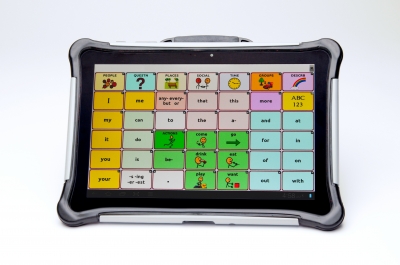
4.  LAMP Words For Life communication software (Center for Autism): LAMP Words For Life is based on Prentke Romich Company’s (PRC) Unity language system and Language Acquisition through Motor Planning (LAMP), a therapeutic approach that uses consistent motor planning for access to vocabulary. 

Like many of the apps, it can grow with Moe as his language skills advance. The app includes three vocabularies to support language development: 1-Hit is an introductory level vocabulary; Transition adds additional vocabulary; and Full Vocabulary includes over 3000 words and allows customization. 

The app features one motor planning per word that allows the development of quick communication. Even as we add more words, the icons Moe has already learned will always be in the exact same place. Vocabulary Builder shows targeted words to limit distractions and increase success, and Word Finder allows for locating a specific word. 

The downside to this app is that it is purely symbol based, and doesn't use photos (at least in the beginning stages; I think pictures can be imported when we get to the customizable screens). Like the Unity app, it is based on the idea of Core and Fringe language. This can be more complicated for teachers (read: me) to learn, but I liked that the symbols are pre-defined based on research. Because we start only with core language, there is very little customization in the early stages of learning. To me, this means less tinkering and fewer ways for me to screw it up.

This is the app we ultimately chose, and I'll describe how we are using it in Part 3 of this series.

App is $300, though I got it for $150 on world autism awareness day!


6. Speak For Yourself: We took a brief look at SFY, an app that is also based on motor planning and the idea of core and fringe language. I liked the look and feel of the LAMP app a bit better, so ultimately chose that one, but this would have been a good alternative. I know several people who use this app with success, and they have great tips for general AAC learning on their Facebook page. 

The app costs about $200.


Remember, there is no one best AAC app. If you think AAC is right for you or your child, request an AAC evaluation at school or find an SLP who has experience with many AAC apps. Try them out (codes are often available for 30 day trials of apps), look at the websites, and think about what features might be most beneficial to the user. You might decide to go with what your SLP has the most experience with, what the other kids at school use, or what most resembles the type of communication your child is already doing. Does he read? Does she use PECS? Does he understand icons or does he need photos?

I look forward to sharing more of our experiences with you along the way!

October 9, 2012

What Moe Can Do: Play iPad

I write a lot on about limitations within our family, things that Moe can't do or reasons it is hard for us to do the types of things your average family with a five year old and a three year old do. We have a lot of those limitations, and they are the kinds of things I usually need to work out for myself by writing about them.

But Jeff and I have been marveling lately at the number of things that Moe can do and ways that he's progressed over the past several months. So I want to spend some time telling you the ways in which Moe is developing and changing. I think it will be good for me too.

So today, I launch the first in a series of posts called: What Moe Can Do!

Moe can play iPad games

Every mother's dream, right? For me, in many ways, yes. For a long time, Moe would take the iPad and just push the button over and over. He would tap an icon to start an app, and basically just randomly touch things or watch the opening sequence then press the button again. And he would drag his whole hand on the screen so that he'd often inadvertently leave an app. He would be easily frustrated or over stimulated.

Moe does well when the iPad is at an angle.
The OtterBox case is great for this and for protection.
Eventually, though, Moe started to be able to navigate the iPad. (Something he could do with ease at 18 months, but lost this ability when he regressed). He learned to slide his finger to turn it on and slide the home screens to find his apps. He learned where his favorite apps were, even those hidden in folders, and can launch them. He learned to use one finger (although he will sometimes use his thumb instead of his pointer), and play games. He was most successful with simple games, like My First Tangram and the robot building part of Toca Robot Lab (see link below). But he is learning to play the more complex parts of the apps now too. For example, after building a robot you need to navigate it through a simple maze. He used to just press the button and start over at that point, but now he is able to complete the game to be able to build another robot.

So why am I so excited about this? In part, it is because it is a concrete way to see progress. I can see more sophisticated thinking going on as he becomes better able to work within the apps. It gives me hope that he may be able to navigate a complex communication system in the future.

But most significant right now is that Moe finally has an activity he can do on his own. He is not good at occupying his time. He will spend his free time bored or frustrated and gets into trouble. He wanders the house, climbs things, bounces off the walls, spins in his swing or empties Jelly's drawers (her hair accessories are way more interesting than anything in his room). The iPad provides activities that Moe can do independently. They require focus, problem solving skills and creativity. I try to balance iPad time with generous amounts of physical activity, but just having Moe sit still for a little while is a huge improvement for both of us.

In case you are looking for some apps for your little one, here are some of Moe's favorites right now. Jelly likes these too, though some are not quite challenging enough for her anymore.

-All Toca Boca apps, especially Toca Band (both kids' favorite right now), Toca Doctor, Toca Kitchen and Toca Robot Lab
-Starfall ABCs
-Sound Touch
-Several of the Duck Duck Moose apps, especially Itsy Bitsy Spider

Over the next few days, I will update my Resources page to include a list of apps we like, but if you are looking for an excellent curated list, visit the spreadsheet over at Squidalicious.

October 25, 2011

My iPad is Not Magic

The internet has been abuzz (or, more appropriately, atwitter) with discussion of the 60 Minutes piece called "Apps for Autism" (watch the video here). Indeed I got many calls from people reminding me to watch the show, which I appreciated because I had forgotten to set it to record earlier that week. I was excited to see it and maybe learn some about some new apps I hadn't known about.

I enjoyed the piece, but I wasn't blown away. As someone who is pretty tech-savvy and who has been following the iPad as a communication tool for some time, the piece didn't tell me anything I didn't already know. And I had some issues with the content as well.

Let's talk about Josh, the 27 year old who was shown using the iPad to communicate quite adeptly, including answering interview questions and ordering food at a restaurant. I admit I did tear up a bit at the thought that my Moe may someday have a voice, even in electronic form. However, text to speech devices have existed for some time. Even without one, Josh was clearly able to use picture icons to communicate, yet they showed him spelling out words on a piece of paper for the interview. As Dana over at Uncommon Sense said, "Are we to believe that for 26 years, Josh has used only a (poorly) laminated paper keyboard, and then one day he got an iPad and it changed everything?"

And what about the little girl they were teaching to count? First they show her in front of a piece of paper with the numbers 1 and 2 printed on it. Big surprise! She wasn't interested. Would you be? Then they show her an iPad and numbers go scrolling by. The numbers got so much higher than 2! And that girl watched those numbers. But I didn't actually see anyone teaching her to count in either scenario. Yes, attention is a first step to learning, but nothing about that clip showed how a teacher or parent might use the iPad to teach someone with learning difficulties to count.

I did appreciate the teacher who said the iPad isn't for everybody. Moe doesn't yet have the attention, or the language skills, to use an iPad. He likes it - but he mostly likes to bang on it, which is why I got him a drumming app. He likes to push the home button (would somebody please make a way to lock it from inside an app?), which just takes him out of the app I'm trying to teach him to use. We've been practicing with the free version of a communication app called Sono Flex Lite, but I think the iPad may be simply too exciting for him. We have better luck with paper icons and velcro.

We have had some success with receptive language skills with apps like Sound Touch, and the Kindergarten.com apps (shown in the piece). Like the boy who loves opera, Moe seems to be able to identify more items than you would think. Moe has challenges not just with forming speech, but with all language and communication, and so just giving him another way to communicate is not the same as teaching him how to communicate.

Don't get me wrong. I think the iPad is incredible. It is expensive (and the Proloquo2Go communication app costs another $189.99), but it is much cheaper than, say, an $8,000 Dynavox. The iPad is small and portable and easy to navigate. And, perhaps most importantly, it is cool; there is no stigma in carrying around an iPad. So yes, for some people, and I'd imagine especially for people who have some experience with some of the clunkier alternate forms of communication, the device is life-changing.

But it isn't magic. There are a number of reasons for communication difficulties, and not all of them are solved by the iPad. And despite the message sent by the 60 Minutes piece, all autistic kids aren't born knowing how to use one. They need to be taught to use it, shown how it can help them, and for some it really does. For others, like Moe, it is just one more useful tool in our growing collection.

LinkWithin

Related Posts with Thumbnails